Tuesday, January 13, 2015

Add/Install Google+ and Blogger Comments With Blogger

Users can easily comment on your every single post while reading your post or using the Google+ account. Today I'm going to show you how to attach/add Google+ and blogger comments only on blogger platform. It means when any webmaster create a post, he/she shares this post on Google+, So your post also available in Blogger and Google plus. Users/Viewers can comments on your post even on your Google plus share post. As you know Google plus is Google property and it's very powerful for SEO. If any visitors comes to your post from google plus, Google consider that visitors as a organic visitors.

Install-blogger-and-Google-plus-comments


By this way you can increase blog Traffic, Google plus followers and Google plus circle. You can take advantage of the google plus comment system on blogger. You can reply easily of google plus commentator as well as blogger on one platform.

How to Integrate Google Plus and Blogger Comments:


To add this installation as simple as possible, We used inline JQuery and CSS, but anybody can change it later. So let's start to adding it.

Step 1. Go to your Blogger Dashboard, Open specific Blog, > then select "Template" and click on "Edit HTML"

Step 2. Clock anywhere on the code and press Ctrl + F to open the search box, Now Find the code below

<b:include data='post' name='post'/>

Step 3. Copy the given below code and paste just <b:include data='post' name='post'/> after it

 <b:if cond='data:blog.pageType == &quot;item&quot;'><style>#comments, #gplus-comments-visibility {display:none;} .comments-icons {background: url(https://blogger.googleusercontent.com/img/b/R29vZ2xl/AVvXsEhzcCTBZ_-h57pePrMtEkaI42Sq47DrWEav2oKTn3GmZdkelzeN8U-udDhzyD_sxb8Y7X2WLCYzP1cYHPkwcBn_PObM8tZ4sjLpeCTFhtN3TBL28taM2cO7TVxNXp-is4f_DzJ2wLjJuY61/s1600/speech-bubble.png) no-repeat; font-size: 20px; font-family: &quot;Arial Narrow&quot;,Arial,sans-serif; color: #555; font-weight: bold; padding: 18px 15px 0; height: 70px; } .comments-icons a img {vertical-align: middle;}</style><div class='comments-icons'>Show Comments: <a class='show-hide-comments' href='javascript:void();' onclick='$(&quot;#gplus-comments-visibility&quot;).slideToggle();$(&quot;#comments&quot;).hide();'><img class='gplus-icon' height='35' src='https://blogger.googleusercontent.com/img/b/R29vZ2xl/AVvXsEgPukpZtRu0YWsabmSHkQuVME2bX9Yu7a9suM09Ym-zlfjeGQv6HzZD183wGOzWKpc7cTpmKAmTWcQniOR-bO4zyW0AmIzqaLvUj5sxiVb5N6pLYEvyoMUmhCXO1nXdjOsj2OVjgoUlFR4T/s1600/google-plus-logo.png' width='35'/></a> OR <a class='show-hide-comments' href='javascript:void();' onclick='$(&quot;#comments&quot;).slideToggle();$(&quot;#gplus-comments-visibility&quot;).hide();'><img class='blogger-icon' height='35' src='https://blogger.googleusercontent.com/img/b/R29vZ2xl/AVvXsEiefCe37tAmKs5c7ASQs8atTqZKfUWnzSLR3DCXcVnOWO0BQ32UZqbsEr73AYFZ-5W4zr5_-rjkFdc879_2zwhSRnYTHrnOI5iJL533LL6qRqI9j3F8IwThald1kapvB8MkQPw7H_evI7Zk/s1600/blogger-logo.png' width='35'/></a></div><div id='gplus-comments-visibility'><div class='g-comments' data-first_party_property='BLOGGER' data-view_type='FILTERED_POSTMOD' data-width='550'expr:data-href='data:post.url'/></div>       </b:if>

Step 4.  The code data-width='550' indicate that you can change easily by increasing/decreasing '550' according to your blog size.

Step 5. Now Save your Template, and check your blog to see if you have successfully added this code to blogger

Note: If this code is not working for you it means you must have to put JQuery script in <head> </head> section 

Add JQuery script: 

Paste the given below code before the </head> tag

<script src='https://ajax.googleapis.com/ajax/libs/jquery/1.6.4/jquery.min.js' type='text/javascript'/>

You have Done. Your reader will enjoy the flexibility that your site provides and you will also get benefit from the inclusive services offered by Google.

Share this post of this site with your friends on social media sites. If you have any Question and any problem feel free to contact me in comment section.


Add Social Sharing Icons with Email Subscription Widget Below Every Post

You have a blog and if your blog is with out collaboration of social media sites, then may be your blog worth is nothing in online world. In this post I will tell you how to add social sharing buttons with Email subscribe widget and facebook page like icon. If you add this widget in your blog, your viewers can easily share/like and subscribe your every post. This widget can help you a lot to popular you in social media sites.

Add-Social-icons-with-Email-RSS-widget

Recommended: Add Attractive Email Subscription Widget in Blogger

Instructions to Add Widget in Blogger:

1- Go to blogger Dash Board →  Template →  Edit HTML

2- After it Find the shown code below by pressing Ctrl+F (Click anywhere in code then press Ctrl+F)

<data:post.body/>
3- Now Copy code shown below and paste just after ( <data:post.body/> ) it.

<b:if cond='data:blog.pageType == "item"'><style>p#socialicons img { -moz-transition: all 1s ease-in-out; -webkit-transition: all 1s ease-in-out; -o-transition: all 1s ease-in-out; -ms-transition: all 1s ease-in-out; transition: all 1s ease-in-out;} p#socialicons img:hover { -moz-transform: rotate(360deg); -webkit-transform: rotate(360deg); -o-transform: rotate(360deg); -ms-transform: rotate(360deg); transform: rotate(360deg);}.emailbutton{background:#f7f8f9;background:-webkit-gradient(linear,left top,left bottom,color-stop(#f7f8f9,0),color-stop(#e9e9e9,1));background:-webkit-linear-gradient(top, #f7f8f9 0%, #e9e9e9 100%);background:-moz-linear-gradient(top, #f7f8f9 0%, #e9e9e9 100%);background:-o-linear-gradient(top, #f7f8f9 0%, #e9e9e9 100%);background:linear-gradient(top, #f7f8f9 0%, #e9e9e9 100%);filter:progid:DXImageTransform.Microsoft.gradient( startColorstr='#f7f8f9', endColorstr='#e9e9e9',GradientType=0 );border:1px solid #ddd;-webkit-border-radius:4px;-moz-border-radius:4px;border-radius:4px;padding:6px 12px;margin:0;-webkit-box-shadow:0 1px 0 #f9f9f9 inset, 1px 1px 1px rgba(223,223,223,0.4);-moz-box-shadow:0 1px 0 #f9f9f9 inset, 1px 1px 1px rgba(223,223,223,0.4);box-shadow:0 1px 0 #f9f9f9 inset, 1px 1px 1px rgba(223,223,223,0.4);color:#888;text-shadow:0 1px 0 #fff;line-height:1.2;cursor:pointer;font-size:13px;}.emailbutton:hover{background:#f1f1f1;background:-webkit-gradient(linear,left top,left bottom,color-stop(#f1f1f1,0),color-stop(#e0e0e0,1));background:-webkit-linear-gradient(top, #f1f1f1 0%, #e0e0e0 100%);background:-moz-linear-gradient(top, #f1f1f1 0%, #e0e0e0 100%);background:-o-linear-gradient(top, #f1f1f1 0%, #e0e0e0 100%);background:linear-gradient(top, #f1f1f1 0%, #e0e0e0 100%);filter:progid:DXImageTransform.Microsoft.gradient( startColorstr='#f1f1f1', endColorstr='#e0e0e0',GradientType=0 );text-decoration:none !important;}.email{clear:both;width:100%;margin:10px 0;}.emailform{position:relative;width:300px;margin:0 auto;}.emailinput{width:200px;height:18px;margin:0 auto;padding:8px 40px 8px 10px;border:1px solid #ddd;-webkit-border-radius:4px;-moz-border-radius:4px;border-radius:4px;font-family:georgia;font-style:italic;-webkit-box-shadow:1px 1px 2px #dfdfdf;-moz-box-shadow:1px 1px 2px #dfdfdf;box-shadow:1px 1px 2px #dfdfdf;font-size:14px;color:#666;}.emailbutton{-webkit-border-top-right-radius:4px;-webkit-border-bottom-right-radius:4px;-moz-border-radius-topright:4px;-moz-border-radius-bottomright:4px;border-top-right-radius:4px;border-bottom-right-radius:4px;-webkit-border-top-left-radius:0px;-webkit-border-bottom-left-radius:0px;-moz-border-radius-topleft:0px;-moz-border-radius-bottomleft:0px;border-top-left-radius:0px;border-bottom-left-radius:0px;padding:9px;position:absolute;right:-2px;top:0;display:block;line-height:16px;}.emailbutton{padding:8px !important;}.emailform, .emailinput{width:98% !important;-webkit-box-sizing:border-box;-moz-box-sizing:border-box;box-sizing:border-box;height:auto;}
</style><center><div style='font-size: 22px;'><b>Share this article with your friends.</b></div><p id='socialicons'><a expr:href='&quot;http://plus.google.com/share?url=&quot; + data:post.url' rel='external nofollow' target='_blank'><img border='0' src='https://blogger.googleusercontent.com/img/b/R29vZ2xl/AVvXsEiDmrBtTIvQjgRNYtiZLqOXZIwwRMi5aO4UKdIWbXOljegawrvQXKSNwtlf7M9PKe8iX42GHOVWUrlDiz4-EnrslF2I99DY9HNI60XZyKbEFwExOo7fu_mwjFWvp9ZV_wZ4e_rVRksLGoM/h120/pctoolstips.blogspot.com.png'/></a><a expr:href='&quot;http://www.facebook.com/sharer.php?u=&quot; + data:post.url + &quot;&amp;t=&quot; + data:post.title' rel='external nofollow' target='_blank'><img border='0' src='https://blogger.googleusercontent.com/img/b/R29vZ2xl/AVvXsEgGqBjS7D74dfdbTnb587Ft1D-QzqYqHy7caEvwlGovG2GUbt8dlhiGXdQ7iC_PJvq7e3SNcB0ae2A8gkYYscj0LdzsEC4efit7c_1TBaAPukXjTynZynSwYMme7Pgi1xiZcJE5kvrQJiI/h120/pctoolstips.blogspot.com.png'/></a><a expr:href='&quot;http://twitthis.com/twit?url=&quot; + data:post.url + &quot;&amp;title=&quot; + data:post.title' rel='external nofollow' target='_blank'><img border='0' src='https://blogger.googleusercontent.com/img/b/R29vZ2xl/AVvXsEiCWbyIF6cXDET4NJpmG7Q23irJmzJGCIav2fG1s8NL_NJh0BqWKHpTPl2BCKZ8I-OMj5BYVOF8hvAVmK0zCR84Vh7NQuT_l-5hyqgLhzE3BYKfAA0PcIx0UtUuZADU1vU5Xhtv11eD40U/h120/pctoolstips.blogspot.com.png'/></a><a expr:href='&quot;http://digg.com/submit?phase=2&amp;url=&quot; + data:post.url' rel='external nofollow' target='_blank'><img border='0' src='https://blogger.googleusercontent.com/img/b/R29vZ2xl/AVvXsEje_uUyPQc7Z7CjjxWiiXdKBarVU45OdxI4fmllSHyIOjrHTTUBaqiJxeYn4vtrE15a_4AaTRRVrqcFamQTOyoIfwDtlmaA9YuB9xL8d5SSZRhuWx2tG0O6ug726jkbT3giod3krL1jvmk/h120/pctoolstips.blogspot.com.png'/></a><a expr:href='&quot;http://del.icio.us/post?url=&quot; + data:post.url + &quot;&amp;title=&quot; + data:post.title' rel='external nofollow' target='_blank'><img border='0' src='https://blogger.googleusercontent.com/img/b/R29vZ2xl/AVvXsEjhXSmddaE8lQvCyllKNCXpKCkubJ5pf1u368-ST23JPRqGmr6XQpd0jy5HlXkFLcBY6LaSHrOZr_J2Dz_VBDvBweAu5piB2WcBJnuy3W25iDjRTU0ifdqKAfyt-XVTE7o0eJ6jSJwOwVs/h120/pctoolstips.blogspot.com.png'/></a><a expr:href='&quot;http://www.stumbleupon.com/submit?url=&quot; + data:post.url + &quot;&amp;title=&quot; + data:post.title' rel='external nofollow' target='_blank'><img border='0' src='https://blogger.googleusercontent.com/img/b/R29vZ2xl/AVvXsEj8Ibj359e9bbJ5Xq5_iEv3mRyopTBc7lJ5pjbwVk8mRwCjyYwLECTrvzc7ffXwtqmV4VPp83_aAybG23Lv7tqaA_JQ7agMsFdPQsD1pYKM-7iz4KS2EFLh7yLDX8yfPsk5LPKmGwLrLPc/h120/pctoolstips.blogspot.com.png'/></a><a expr:href='&quot;http://www.technorati.com/faves?add=&quot; + data:post.url' rel='external nofollow' target='_blank'><img border='0' src='https://blogger.googleusercontent.com/img/b/R29vZ2xl/AVvXsEgrKkWKAosJntzPW2-nrb7aGxpg0UxqoF2mhide63MkFgGZ3G8qO0aa_N1sOhqhrcFG8A6BycPdlHO1Wr13D1MokoHJm0-Us1eyCUgyXPfaDrL27qrPZv1AQNiYTZiRRNKvWj71Ihb_MjE/h120/pctoolstips.blogspot.com.png'/></a></p><div style='margin:5px 0px 10px 0px; padding:10px; width:590px;float:none; '><div style='float:left; width:272px; border-right:1px solid #ddd;'><iframe allowtransparency='true' frameborder='0' scrolling='no' src='http://www.facebook.com/plugins/likebox.php?href=URL HERE&amp;width=292&amp;colorscheme=light&amp;show_faces=false&amp;border_color&amp;stream=false&amp;header=false&amp;height=62' style='border:none; overflow:hidden; width:292px; height:62px;'/></div><div style='margin:15px 15px 0px 0px; padding:0px; float:right; width:260px;'><iframe allowtransparency='true' class='twitter-follow-button' frameborder='0' scrolling='no' src='http://platform.twitter.com/widgets/follow_button.html#_&amp;id=twitter-widget-0&amp;lang=en&amp;screen_name=USERNAME2&amp;show_count=true&amp;show_screen_name=true&amp;size=l' style='width: 266px; height: 32px;' title='Twitter Follow Button'/><script src='http://platform.twitter.com/widgets.js' type='text/javascript'/></div></div><div class="email"><form action="http://feedburner.google.com/fb/a/mailverify" method="post" target="popupwindow" onsubmit="window.open('http://feedburner.google.com/fb/a/mailverify?uri=USERNAME1', 'popupwindow', 'scrollbars=yes,width=550,height=520');return true" class="emailform"><input type="hidden" value="USERNAME1" name="uri" /><input type="hidden" name="loc" value="en_US" /><input type="text" onblur="if (this.value == &quot;&quot;) {this.value = &quot;Enter your email...&quot;;}" onfocus="if (this.value == &quot;Enter your email...&quot;) {this.value = &quot;&quot;}" value="Enter your email..." name="email" class="emailinput" /><input type="submit" class="emailbutton" value="SignUp" title='' /></form></div><div dir="ltr" style="text-align: Right;" trbidi="on"><a href="
http://makemoneyonline72.blogspot.com/2015/01/add-social-sharing-icons-with-email.html" target="_blank" ><span style="font-size: xx-small;">Get This</span></a></div></center></b:if>

Customize this Widget

4- Replace USERNAME1 with your Feed Burner user name {by pressing Ctrl+F}

5- Replace URL HERE with you Facebook fan page URL

6- Replace USERNAME2 with you Twitter user name. 

7- Save Targeted widget and Enjoy.

Note: If this widget doesn't appear after paste Code, then find next [ <data:post.body/> ] code and paste widget code just after it. In case of me I was find this code for 4 time then paste widget code, So Widget will be show below every post

I hope you enjoyed this featured post. And I'm sure It's working for you. If you have any question and query please ask me in comment section and remember don't forget to share this post with your friends in social media sites.


Add Attractive Email Subscription Widget in Blogger

Add amazing RSS Subscription Form: This is really a very great feature to add like this widget in blogger, by adding this widget you can easily increase your Subscribers and Viewers. If you provides useful and healthy content to your viewers, then some times your readers need to get latest newsletter from blog, that's why you should add Email subscription form in your blog.

Add RSS Subscription form in blogger:


You just need to follow given below steps.

* Go to desired blog > > Select Layout > > Click on "Add a Gadget" link

* From the popup window, scroll down and click on the "HTML/JavaScript" gadget


* Now Copy the given below code and paste in empty "HTML/JavaScript" gadget.


       <style>
      .hl-email{
      background:url(
      https://blogger.googleusercontent.com/img/b/R29vZ2xl/AVvXsEi5N6rV9OxpO_OCHG5ePmY5ZD3pO2u9KYJ-Kk5w6u7q6ORHeFLKUiwhQur4Ed5CgyL40pGnz0y_x6DpZvSLr7SJhsqj-5LWshlCuwCX8lco1JXV509vaOO4c51stsxXqF-88m3tkGMpcLQ/s1600/mail.png) no-repeat 0px 12px ;
      width:300px;
      padding:10px 0 0 55px;
      float:left;
      font-size:1.4em;
      font-weight:bold;
      margin:0 0 10px 0;
      color:#686B6C;
      }
      .hl-emailsubmit{
      background:#9B9895;
      cursor:pointer;
      color:#fff;
      border:none;
      padding:3px;
      text-shadow:0 -1px 1px rgba(0,0,0,0.25);
      -moz-border-radius:6px;
      -webkit-border-radius:6px;
      border-radius:6px;
      font:12px sans-serif;
      }
      .hl-emailsubmit:hover{
      background:#E98313;
      }
      .textarea{
      padding:2px;
      margin:6px 2px 6px 2px;
      background:#f9f9f9;
      border:1px solid #ccc;
      resize:none;
      box-shadow:inset 1px 1px 1px rgba(0,0,0,0.1);
      -moz-box-shadow:inset 1px 1px 1px rgba(0,0,0,0.1);
      -webkit-box-shadow:inset 1px 1px 1px rgba(0,0,0,0.1); font-size:13px;
      width:
      130px;
      color:#666;}
      </style>
      <div class="hl-email">
      Subscribe via Email <form action="http://feedburner.google.com/fb/a/mailverify" id="feedform" method="post" target="popupwindow" onsubmit="window.open('
      http://feedburner.google.com/fb/a/mailverify?uri=makemoneyonline-72', 'popupwindow', 'scrollbars=yes,width=550,height=520');return true">
      <input gtbfieldid="3" class="textarea" name="email" onblur="if (this.value == &quot;&quot;) {this.value = &quot;Enter email address here&quot;;}" onfocus="if (this.value == &quot;Enter email address here&quot;) {this.value = &quot;&quot;;}" value="Enter email address here" type="text" />
      <input type="hidden" value=”makemoneyonline-72" name="uri"/><input type="hidden" name="loc" value="en_US"/>
      <input class="hl-emailsubmit" value="Submit" type="submit" />
      </form>
      </div>

      Setting:


      * Replace the URL in green to change the Email icon.

      * To change the width or the text area, increase/decrease 130px in red.


      * Replace the 'http://feedburner.google.com/fb/a/mailverify?uri=makemoneyonline-72' with 
      your feed burner url.

      * Replace the "makemoneyonline-72" with your feed burner name.


      * Now Save the widget, and again save Layout.


          Keep visiting this blog to get latest post. Don't forget to share this post with your Friends on Social Media Sites.

          Sunday, January 11, 2015

          Add Facebook JQuery Popup like box with BackGround Image in Blogger

          As you know Facebook is the largest social media site in world and billion of people are attached to it. You can share your thoughts and ideas with your friends on Facebook. Specially if you have Blogs or Websites then you must want to be popular on facebook. Facebook is that place where you can have more and more back-links. If you have a Website/Blog without interconnected social media then your Website/Blog may be worthless. So here I'm going to introduce a think that is very useful for your Blog ranking. So that is known as.

          Facebook-like-box

          Facebook popup Widget:

          How it is useful for your Blog/Website? It is useful as a visitor click on your website there will be automatic popup of this widget. If a visitors wants to like your facebook page, he will like the page without doing anything further. 

          Add this Widget on your Blog:

          1. Firstly open the Blog on which you want to add this widget
          2. Go to > Layout > Add a Gadget
          3. Select HTML/JavaScript after this
          4. Put this code given below
          <script src="http://makingdifferent.github.com/blogger-widgets/[www.gj37765.blogspot.com]jquery.colorbox-min.js"></script>
          <style type="text/css">
          #colorbox, #cboxOverlay, #cboxWrapper{
          position:absolute;
          top:0;left:0;
          z-index:9999;
          overflow:hidden;
          }
          #cboxOverlay{
          position:fixed;
          width:100%;
          height:100%;
          }
          #cboxMiddleLeft,#cboxBottomLeft{
          clear:left;
          }
          #cboxContent{
          position:relative;
          }
          #cboxLoadedContent{
          overflow:auto;
          }
          #cboxTitle{
          margin:0;
          }
          #cboxLoadingOverlay,#cboxLoadingGraphic{
          position:absolute;
          top:0;left:0;
          width:100%;
          }
          #cboxPrevious, #cboxNext, #cboxClose,#cboxSlideshow{
          cursor:pointer;
          }
          .cboxPhoto{
          float:left;
          margin:auto;
          border:0;
          display:block;
          }
          .cboxIframe{
          width:100%;
          height:100%;
          display:block;
          border:0;
          }
          #cboxOverlay{
          background:#000000;
          opacity:0.5 !important;
          }
          #colorbox{
          /*box-shadow*/
          -webkit-box-shadow:0 0 15px rgba(0,0,0,0.4);
          -moz-box-shadow:0 0 15px rgba(0,0,0,0.4);
          box-shadow:0 0 15px rgba(0,0,0,0.4);
          }
          #cboxTopLeft{
          width:14px;
          height:14px;
          background:url(http://3.bp.blogspot.com/-UFvsMA0xw_s/TwRGZN6BBGI/AAAAAAAACNA/_z47WNmUOfs/s1600/%255Bwww.gj37765.blogspot.com%255Dcontrols.png) no-repeat 0 0;
          }
          #cboxTopCenter{
          height:14px;
          background:url(http://2.bp.blogspot.com/-3KW95qDrjH0/TwRGYol22fI/AAAAAAAACM4/lCr80B0MD2U/s1600/%255Bwww.gj37765.blogspot.com%255Dborder.png) repeat-x top left;
          }
          #cboxTopRight{
          width:14px;
          height:14px;
          background:url(http://3.bp.blogspot.com/-UFvsMA0xw_s/TwRGZN6BBGI/AAAAAAAACNA/_z47WNmUOfs/s1600/%255Bwww.gj37765.blogspot.com%255Dcontrols.png) no-repeat -36px 0;
          }
          #cboxBottomLeft{
          width:14px;
          height:43px;
          background:url(http://3.bp.blogspot.com/-UFvsMA0xw_s/TwRGZN6BBGI/AAAAAAAACNA/_z47WNmUOfs/s1600/%255Bwww.gj37765.blogspot.com%255Dcontrols.png) no-repeat 0 -32px;
          }
          #cboxBottomCenter{
          height:43px;
          background:url(http://2.bp.blogspot.com/-3KW95qDrjH0/TwRGYol22fI/AAAAAAAACM4/lCr80B0MD2U/s1600/%255Bwww.gj37765.blogspot.com%255Dborder.png) repeat-x bottom left;
          }
          #cboxBottomRight{
          width:14px;
          height:43px;
          background:url(http://3.bp.blogspot.com/-UFvsMA0xw_s/TwRGZN6BBGI/AAAAAAAACNA/_z47WNmUOfs/s1600/%255Bwww.gj37765.blogspot.com%255Dcontrols.png) no-repeat -36px -32px;
          }
          #cboxMiddleLeft{width:14px;background:url(http://3.bp.blogspot.com/-UFvsMA0xw_s/TwRGZN6BBGI/AAAAAAAACNA/_z47WNmUOfs/s1600/%255Bwww.gj37765.blogspot.com%255Dcontrols.png) repeat-y -175px 0;
          }
          #cboxMiddleRight{
          width:14px;background:url(http://3.bp.blogspot.com/-UFvsMA0xw_s/TwRGZN6BBGI/AAAAAAAACNA/_z47WNmUOfs/s1600/%255Bwww.gj37765.blogspot.com%255Dcontrols.png) repeat-y -211px 0;
          }
          #cboxContent{
          background:#fff;
          overflow:visible;
          }
          #cboxLoadedContent{
          margin-bottom:5px;
          }
          #cboxLoadingOverlay{background:url(http://3.bp.blogspot.com/-7VRvnW_MUSw/TwRGXjXjloI/AAAAAAAACM0/5K-J5jgkxo4/s1600/%255Bwww.gj37765.blogspot.com%255Dloadingbackground.png) no-repeat center center;
          }
          #cboxLoadingGraphic{background:url(http://3.bp.blogspot.com/-xjj51r2lm2M/TwRGaKezqHI/AAAAAAAACNI/lKX9_-YUUdY/s1600/%255Bwww.gj37765.blogspot.com%255Dloading.gif) no-repeat center center;
          }
          #cboxTitle{
          position:absolute;bottom:-25px;
          left:0;
          text-align:
          center;width:100%;
          font-weight:bold;
          color:#7C7C7C;
          }
          #cboxCurrent{
          position:absolute;
          bottom:-25px;
          left:58px;
          font-weight:bold;
          color:#7C7C7C;
          }
          #cboxPrevious, #cboxNext, #cboxClose, #cboxSlideshow{
          position:absolute;
          bottom:-29px;
          background:url(http://3.bp.blogspot.com/-UFvsMA0xw_s/TwRGZN6BBGI/AAAAAAAACNA/_z47WNmUOfs/s1600/%255Bwww.gj37765.blogspot.com%255Dcontrols.png) no-repeat 0px 0px;
          width:23px;
          height:23px;
          text-indent:-9999px;
          }
          #cboxPrevious{
          left:0px;
          background-position:-51px -25px;
          }
          #cboxPrevious.hover{
          background-position:-51px 0px;
          }
          #cboxNext{
          left:27px;
          background-position:-75px -25px;
          }
          #cboxNext.hover{
          background-position:-75px 0px;
          }
          #cboxClose{
          right:0;
          background-position:-100px -25px;
          }
          #cboxClose.hover{
          background-position:-100px 0px;
          }
          .cboxSlideshow_on #cboxSlideshow{
          background-position:-125px 0px;
          right:27px;
          }
          .cboxSlideshow_on #cboxSlideshow.hover{
          background-position:-150px 0px;
          }
          .cboxSlideshow_off #cboxSlideshow{
          background-position:-150px -25px;
          right:27px;
          }
          .cboxSlideshow_off #cboxSlideshow.hover{
          background-position:-125px 0px;
          }
          #mdfb{
          font:12px/1.2 Arial,Helvetica,san-serif;color:#666;
          }
          #mdfb a,#mdfb a:hover,#mdfb a:visited{
          text-decoration:none;
          }
          .mdbox-title{
          background:#000;
          color:#fff;
          font-size:20px !important;
          font-weight:bold;
          margin:10px 0;
          border:20px solid #ddd;
          /*border-radius*/
          -webkit-border-radius:6px;
          -moz-border-radius:6px;
          border-radius:6px;
          /*box-shadow*/
          -webkit-box-shadow:5px 5px 5px #CCCCCC;
          -moz-box-shadow:5px 5px 5px #CCCCCC;
          box-shadow:5px 5px 5px #CCCCCC;
          padding:10px;
          line-height:25px;
          font-family:arial !important;
          }
          .mdbox-tagline{
          color:#999;
          margin:0;
          text-align:center;
          }
          #mdsubs-container{
          padding:35px 0 30px 0;
          position:relative;
          }a:link,a:visited{
          border:none;
          }
          .demo{
          display:none;
          }
          </style>
          <script type="text/javascript">
          jQuery(document).ready(function(){
          if (document.cookie.indexOf('visited=true') == -1) {
          var fifteenDays = 1000*60*60*24*30;
          var expires = new Date((new Date()).valueOf() + fifteenDays);
          document.cookie = "visited=true;expires=" + expires.toUTCString();
          $.colorbox({width:"600px", inline:true, href:"#mdfb"});
          }});
          </script>
          <div style='display:none'>
          <div id='mdfb' style='padding:10px; background:#fff;'>
          <center>
          <table align="center"background="https://blogger.googleusercontent.com/img/b/R29vZ2xl/AVvXsEgmNr665Pk4puX1w0gj-BgHBBYRB_IcRM-lj1VDjsPMNCh99rJE-f9Z1EgQhctKZVtkewcSboLc7Mo_3by-jkjH0zLxs0So3SV8x5a4xBafVZJK3jLspJFfGQjwx-0Db7N9zj1IvpBjCuSU/s1600/adsense+background+image%2528gj37765.blogspot.com.jpg.png" border="0" height="300" style="width: 505px;">
          <tbody>
          <tr>
          <td height="345" width="505">
          <div align="right">
          <iframe src="//www.facebook.com/plugins/likebox.php?href=https://www.facebook.com/earnmoneyonline72&width=350&colorscheme=light&show_faces=true&border_color=%23ffffff&stream=false&header=false&height=250" scrolling="no" frameborder="0" style="border:none; overflow:hidden; width:350px; height:250px;" allowtransparency="true">
          </iframe></div>
          </td>
          </tr>
          </tbody>
          </table>
          </center>
          <p style=" float:right;margin-right:35px;font-size:9px;">
          By <a style=" font-size:9px;color:#3B78CD;text-decoration:none;" href="
          http://makemoneyonline72.blogspot.com/2015/01/add-facebook-jquery-popup-like-box-with.html">MakeMoneyOnline72</a> | <a style=" font-size:9px;color:#3B78CD;text-decoration:none;" href="http://makemoneyonline72.blogspot.com/2015/01/add-facebook-jquery-popup-like-box-with.html ">Get This !</a>
          </p>
          </div>
          </div>

          Recommended: How to Make Money through Facebook.

          Customize: 

          • Replace the earnmoneyonline72 with your facebook page name.
          • If you want every time popup of this widget simply replace true with false

          Note: By adding this code on Blog if it doesn't appear, it means there is no JQuery script in your template. So in order to appear this Facebook popup box you must add Jquery script in your template. How? Follow the given steps.

          How to Add:

          • Go to > Blogger Dashboard > TemplateEdit HTML
          • Add the given below code before </head> tag, save the template
          <script src="https://ajax.googleapis.com/ajax/libs/jquery/1.7.1/jquery.min.js"></script>
           Also share this info. with your friends on Social Media Sites and follow us on Facebook, Twitter and Google+.

            Thursday, December 18, 2014

            Increase Your Google AdSense Earnings

            For a little over a month now, I’ve been looking at my AdSense earnings in Google Analytics to better understand my earnings, and I’ve stumbled across some rather interesting results. Without even realising it, I’ve come up with even more ways to increase my AdSense earnings each month. They range from simple ad placement, to writing specific posts, and appealing to a certain referrer. Here’s how you can increase YOUR earnings.

            Setting Up

            The first thing you’ll want to do is set up your AdSense so that you can study it in more detail, in Analytics. To do this, when you’re viewing your report overview, just click the link to integrate Adsense with your Analytics account. It’s just one click and then a small amount of information on your Analytics account. You have to be an admin on your Analytics account, otherwise it won’t let you make the changes necessary, but if you’re the only person running the website, this shouldn’t be a problem. NOTE: Because you’re adding new information, GA will not transfer over details from the past, you will only see new results from when your join the two together.
            Now that you’re set up, it’s best to have a run down of what all the terms mean, so that you can understand your results better.
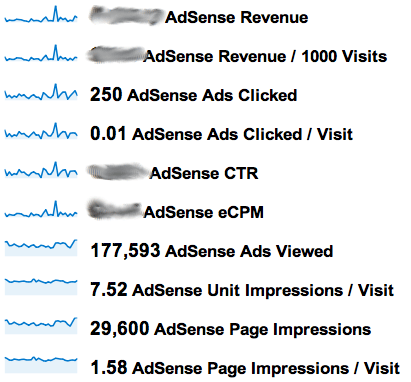
            AdSense Revenue is the amount of money you’ve made in your selected time period (2 weeks for me).
            / 1000 visits, is how much money you’ve made for every 1000 visits to your site.
            Ads clicked, is the amount of ads clicked by viewers.
            Ads clicked / visit, is the total number of visits, divided by the number of ads clicked.
            CTR stands for Click Through Rate and this is the percentage of clicks you get for each ad impression.
            eCPM stands for effective Cost Per 1000 impressions (M being a roman numeral). It’s the total earnings per 1000 impressions.
            AdSense Ads Viewed is the total number of ads seen, from all multiple ads on all the pageviews.
            AdSense Unit Impressions / Visit is the number of ads that are viewed by visitors, per visit.
            AdSense Page Impressions is the amount of pages viewed that have AdSense ads on them.
            AdSense Page Impressions / Visit is similar to pages viewed per visit, only it’s pages with ads viewed, per visit.

            Tip #1 – Appeal To Your Top Referrers

            By far, my favourite thing about using Analytics to look at your AdSense, is that you can then find out which of your referrers are worth the most in terms of AdSense revenue. My results were rather shocking for me. For quite a while now, I’ve been featured on the homepage of a photography forum with about 7000 active members, but that’s grown a lot more over the last month or so. I don’t get a massive amount of traffic from them, as I currently only have 1 link on their homepage, but when I do, it’s worth a lot to me.
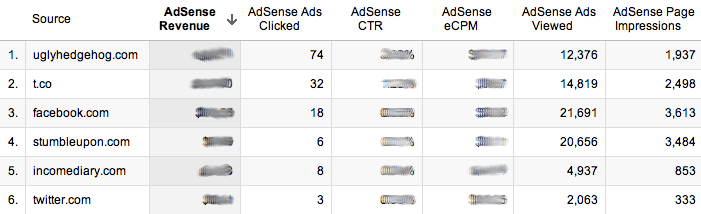
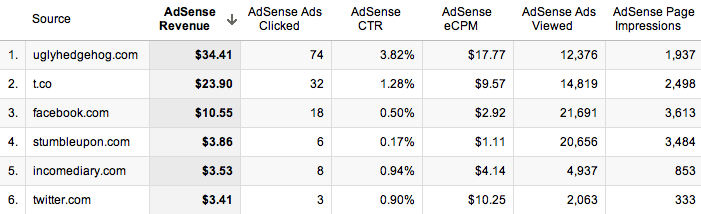
            Let me show you an example of what happened. When you go into the new GA, click on Content, then AdSense, then AdSense Referrers, this will bring up a list of all the websites that sent visitors who have clicked on an ad, as well as a timeline of your earnings. The results below are for a complete month, and unfortunately, due to Google’s rules and regulations, I’m not allowed to show you them, so you’ll just have to take my word for it. The most important part of the results isn’t the ads clicks, viewed, or even the revenue; it’s the Click Through Rate (CTR) and eCPM (effective Cost Per 1000 impressions).
            As we discovered earlier, the CTR is the percentage of ads that are clicked, per impression, so you want that to be as high as possible. The reason the CTR is much higher than some of the other referrers is because of the quality of visitor that I’m receiving from that referrer. StumbleUpon has a particularly poor CTR, because the people who use it aren’t looking for anything in particular so it’s hard to get their attention, which may result in them clicking on an ad. UglyHedgehog on the other hand is a forum for photographers, so the people on that site are actively looking for content in my niche.
            The eCPM is also substantially higher than the other referrers, which tells me that if I can increase the number of impressions that I’m getting from them, then I will earn a lot more money. The quality of Twitter user is usually pretty poor, as they don’t typically spend too much time on the site (00:01:47), and even though a link a lot to my website  around 10 times a day through Twitter, I still get less traffic from them than Facebook. Facebook on the other hand has a better quality of visitor, with people looking at more pages and staying for longer (00:02:29, but their eCPM is actually lower than that of Twitter.
            From these findings I can conclude that very high quality traffic, such as forums in your niche (uglyhedgehog.com has an average time on site of 00:04:09 and 2.19 pages per visit), will make you much more money, just so long as you can get the traffic you’re after. People are less likely to click on ads when they’ve come from websites such as Facebook, as they’re more interested in the content that you’ve written. They provide a good quality of visitor, but their time on site is almost half that of the forum in my niche, so it’s important to find a good balance of visitor quality. Twitter users seem to behave differently to other users, as they’re in a browsing mode, and are clicking on content that they see in their feed before it disappears. It would appear that they treat the websites they visit in a similar way, by clicking on more ads. I actually get more traffic from Facebook, but my earnings from Twitter far outweigh those of Facebook, which is good really, because it’s much more acceptable to post multiple links on Twitter.

            Tip #2 – Write Content That Links Within Your Site

            This step produced shockingly good results for my earnings. If you look have a look at my graph below, you’ll see that on the 6th of November, there was a massive increase in earnings. The first thing I did was look back to that day to see which post I had published, and I found a post titled ‘A Beginner’s Guide To Photography’, and this was simply a collection of my tutorials. This meant that anyone who had viewed the page would have to click on another if they wanted to learn anything. This forced them to increase their pages per visit, which produces more ad impressions.
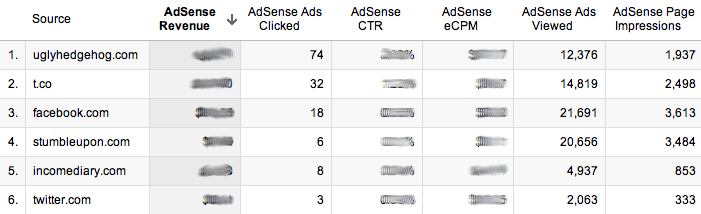
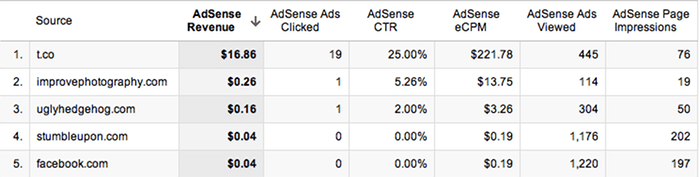
            When I break down my earnings so that I’m only receiving information from the 6th of November, I can start to see which referrer is earning me the most money. T.co is the URL shortener that Twitter uses, so I can see clearly that a small number of page impressions has yielded very strong earnings. With a large number of clicks from 76 page impressions, I have an unusually high CTR. From this response, I can see that to earn money, this is the sort of content that I need to be promoting, though as many sources as I can. I’m currently combining this content, with the forum mentioned in the tip above, so that I can drive top quality traffic, to the content that earns me the most money. After just 2 days of doing this, I’m already starting to notice a massive improvement.

            Tip #3 – Text and Image Ads

            Enabling your ad units to display both text and image/rich media ad types, increases the number of ads competing to appear on your site. More advertisers in the ad auction drives higher bids and more revenue for you. On average, publishers see a 59% increase in eCPM earnings when they make these recommended changes. If you’re not already using both, then it’s as simple as going into the ‘My ads’ tab, and clicking on ‘Edit ad type’, next to the ad in the list. This will increase the cost per click, so even if you’re not improving the number of clicks that your website is getting, you’ll still make more money.

            Tip #4 – Increase Ad Size

            Advertisers prefer wider ad units for their premium inventory, resulting in higher bids for your ad placements. Though all sites are different, publishers typically see 0.35 eCPMs when using the wider ad size. You can start by simply changing single ads on popular pages to see how well they work, and if it’s not too intrusive, then you can start rolling it out across your whole website. I didn’t do this in my sidebar because I was aware that the whole width of the sidebar would have to change, and that would not only take a lot of time, but mess up the spacing that I had laid out for posts. Instead, I added a wider ad at the end of each post, that differs to all the other ads on my website, and this saw a good improvement in ad sales.

            Tip #5 – Ad Placement

            Where you choose to place the ad on your site will make a big difference to the amount of clicks that you get, because the more obvious the ad, the more likely someone will be to see it. It’s hard to judge on your own website because we look at our sites differently to how other people view them, so the best way to start seeing results, is to experiment with ad placement. When I first started, I had two ads on my website, one at the top of the sidebar, and one at the bottom. Since then, we’ve added another ad to the side bar, and reloated the bottom one to under the subscribe button, added an ad to the bottom of each post, and put a small text ad just below our header.
            The small text ad below our header made the biggest difference to our results because it stands out the most to new visitors, and could even be possibly mistaken for a link within our own website. It’s a very simple ad, and less appealing than a flash one, but it’s much less intrusive, and in a better position. Overall, I don’t like to add too many ads because I don’t want to put off visitors or make my website look bad. I always find it odd when people choose to include an ad block in their header, because that makes me find their website much less appealing.

            Top 15 Google Adsense Tips

            Google AdSense is a pay-per-click (PPC) program that can give you advertising revenue from each page on your website with a minimal investment in time and no additional resources.

            AdSense delivers relevant ads that are targeted to the content people find on your site.

            In many advertising networks and websites, including AdSense, the advertiser is charged for advertising their ad only when a user clicks on their ad. How much they pay (for that click) is called their Cost Per Click or CPC.

            Here you will find some simple and effective AdSense tips that will increase your revenue. If you haven't already joined AdSense program, you should sign up first. 

            Now it's time to show you some tips and tricks that will optimize your AdSense ads.


            Top 15 AdSense tips

            AdSense Tip #1: Find your keywords


            Before serving ads on a web page, check its keyword density. A free and advanced tool for finding the most prominent keywords in a page can be found here: SEO Density Analyzer. Copy the most important keywords to a text file ([web page name]-adsense-keywords.txt).

            AdSense Tip #2: Improve your keywords


            Get keyword suggestions from Overture Search Inventory and from Google AdWords Sandbox. Get new keywords that can help you improve your ad relevance. Enter the keywords from [web page name]-adsense-keywords.txt and save the suggestions to [web page name]-adsense-suggestions.txt.

            AdSense Tip #3: Keep your website focused on a theme


            Use the keyword suggestions to enhance your web pages and to build theme-based content. And also try to get your keywords into the anchor text of your incoming links as much as possible. Don't forget that Google AdSense is keyword-targeted advertising: Google AdSense bases its advert topics on your websites content, this means that content-rich websites of a popular topic should attract a large amount of ads.

            AdSense Tip #4: Write a new page every day


            One of the best tips is to add a new page to your web site every day. The more content you have, the more visitors you will get. Put an Adsense unit on each and every content page of your site. But where? You will find more about that from the next AdSense tips.

            AdSense Tip #5: Choose the right AdSense format


            Wider formats are successful because the ads are compact, easy to read and are complementary to the content. The top three AdSense formats are:
            1. 336x280 large rectangle
            2. 300x250 medium rectangle
            3. 160x600 wide skyscraper

            Another successful format is the 468x15 horizontal ad links, that can be placed under your navigation bar.

            More AdSense Tips

            • AdSense Tip #6: Color tips
            • AdSense Tip #7: Position tips
            • AdSense Tip #8: Increase the number of ads
            • AdSense Tip #9: Preview Google ads
            • AdSense Tip #10: What not to do
            • Plus: official Google AdSense tips

            Friday, October 17, 2014

            Complete Blogger Blog Settings & Features Tutorials With Full Guidance Video Training

            Complete Blogger Blog Videos Training: Blogger is the Platform where you create multiple Blogs and adjust it's all setting. Blog can related about any topic. When we create a new blog it looks like simple and not interested, So we must change some settings and input important tools and widgets. After these some settings we can implement SEO on our Blog/Website. If Blogger owner wants to Make Money through Blog then first he create a Blog, Second It makes some changes and settings which I describe Below by Helping the Videos in Detail, Now third step is submit Blog in all Search Engines, Blog Directory, Article Submission, Social Marketing etc (SEO). SEO is the main part of Blog because 70% above Visitors comes from SEO. Final step is he put ads in Blog from different Advertisement Companies and Earn Money. And all above stages is not very Easy, you must do hard work for Making Money from Internet. Today I'll train you that how to make changes in Blogger Blog by Easy & Right way in Below Video tutorials.

            New-Blogger-Interface

            In the Previous Post I already discuss how to create a Blogger Blog Now I am telling you most important Changes, Widgets and Settings after create a new Blog by Helping Videos. 

            SEO-Friendly-Blog
            Recommend: Also Watch How to Create Free Blog on Blogger

            New Blogger Interface SEO Settings Videos In Urdu:

            Blogger Interface (Overview) and Settings:


            Blogger Settings After Creating Blog For SEO... by onlineexpert


            Blogger Post, Pages and Stats Settings:


            Blogger Settings After Creating Blog For SEO... by onlineexpert


            Blogger Template and Layout Settings:


            Blogger Settings After Creating Blog For SEO... by onlineexpert


            Click Here For Off-Page Advance SEO

            I hope you understand my all discussion and Blogger Settings. If you have any Question Please Feel Free and leave your Question in Comment Section. Your thoughts is very valuable for us. And Please Share this Post with your Friends and Family Member on Social Media Sites because you can Help us by doing this action. Thanks in Advance!

            Friday, October 3, 2014

            Buy Free Unlimited Real Twitter Followers with Video Tutorial

            Today is the topic is How to Increase Unlimited Real Twitter Followers. Here is the Best trick which provide you unlimited Quality Twitter Followers. Twitter is the Best High Page Rank Social Media Site. With the help of Twitter you can Advertise anything which you want while Physical product, Software, Website/Blog, Electronic Thing and yourself. You can see very amazing and High Personality Accounts in Twitter.

            Increase-Friends-with-Tweepi

            How to Increase Unlimited Twitter Followers?

            • For this Purpose you just have some things
            • Create an Account on Twitter
            • Write your Interesting KeyWord in Twitter Search Box
            • Twitter Shows related Results, You just copy anybody User Name (like @username)
            • And go to Tweepi.com
            • Under "Follow Tweeps" Hit "@user's followers" in Tweepi
            • Now Install "Tweepi Select All" Software
            • After this Sign-Up in Tweepi
            • Paste User-Name under "Follow Tweeps >> @user's followers"
            • And Hit "Start Following" Button
            • In the next page you will be see some results, Here you Follow one by one user or with the "Tweepi Select All" Software Follow all User in one Time. {Click Top Right on the Screen}
            • Now Scroll Down your Page and Hit on "Next" Button
            • And Again "Tweepi Select All" Icon on Top Right Screen
            • So you had Done
            Tweepi-best-twitter-tool

            About Tweepi:

            You can use many other tools of Tweepi in order to customization. You should many other options with Tweepi to control your Twitter account. For the complete guidance I decided to make a Video about this topic for my respected Viewers and Friends. You must see Video for Practical training and resolve your other Problems. Tweepi is very powerful tool for Social Media Sites.

            Tweepi Video Training in Urdu/Hindi:


            You can Also give Us a Favor by Sharing this Post of this Site with your Friends on Social Media Sites. And Remember f you have any Question about this topic while any topic Please Ask in Comment Section Below. I will Reply you soon. Thanks in Advance!

            Online Data Entry Job With Zero Investment

            Now-A-Days Large No of  People search for Online Jobs like Ads Posting jobs, Data Entry Jobs etc. Every Body wants to Earn Money while Online through Internet Or Offline. Online work on internet is Full of Business, Investment, Advertisement, Shopping, etc. In very few years Huge number of groups are coming towards Online Earning, because Online work is very easy, simple & interesting. In Online work you just have One PC with Internet Connection and enough.

            Now Today I decided to discuss with you How to Earn Handsome Money with "Data Entry Online Home Job". In order to do this job you just have some Skills like Typing Speed, Social Marketing. When you doing Data Entry Job, you complete some task but Now through this Job which I going to tell you, write some Captcha Code in given Box. It's very quick and Simple. Your Typing speed should be little bit strong because at the time of  Data Entry, You just have 15 seconds for 1 Captcha entry.

            Data-Entry-Jobs-at-Home-Free

            How To Start Data Entry Job At Home:

            • In order to Registration, First go MegaTypers.com
            • Hit on Free Sign-Up Button
            • Fill the Blank Boxes with your Correct Information
            • In Invitation Box Write "999D" ( This is my Referral Invitation Code)
            • Invitation Box don't leave Empty.
            • You Receive your Mega-Typers Payment through "Paypal, Western Union, Perfect Money, and Web Money Banks.
            • After This Hit on "Register" Button
            • Now You had Done!

            Remember: Once you select your Payment Method you didn't change in future. I recommend you to select Paypal for Payment Method in Order to Quick and Easy Payout. And this action is beneficial for us because at the time of Payout, MegaTypers charge 2 to 3 % in your payouts, Otherwise if select any-other Method, MegaTypers Charge 15 to 20%. 


            Data-Entry-Work-No-Registration-Fee

            Video will be attach with this Article as Soon.

            Some Important Talk About Meg-Typers:

            Mega-Typers is very Famous and Top-Rated global Website on Online-World. You can Earn Money through this Site by 2 Ways. One of way is Complete tasks yourself ( Enter Captcha Code) and other option is refer this Website (Data Entry Job) with your Friends, Relatives and any body through your Invitation Code. When Any-body join this Website with your Invitation Code, You Earn 10% Money in your joined Referral for Life-Time. For first Option at the time of completing your data entry task, Mega-Typers give you different rates for different tasks. For Simple Task it gives you 0.8$ to 1$, when you complete 1000 Captcha Entry. You can complete 1000 Entry in just 1 - 2 Hours depends on your Typing Speed. And about Payout with Paypal, you get your Payment when you reaches minimum 3$.

            Remember: At the time of Joining Insert "999D" Code in Invitation Bob.

            Recommended: Also Read How To MAke Money With PTC Sites

            If you Share this Post/Article with your Friends and Relatives on Social Media Sites, By this Polite Action you can help Us. And Don't Forget to Share your Thoughts in Comment Section. Because your think is very Important for us and our Viewers, and We must include your thoughts in Article. Thanks for Reading this Post!